There are occasions when it makes sense to decompose one large task into a number of related smaller tasks.
The general guidance for such situations is to use the checklist feature on large tasks to help decompose the task burden into a number of smaller subtasks.
Yet there might remain situations where it is preferable to have distinct tasks for each step. This can be achieved using the checklist ‘Promote’ feature.

The feature will transform each checklist item into a new task, and optionally, delete the original large task.
The steps to achieve this include:
Create a checklist of items for the required large task
Save the task
Re-open the task, and select the checklist ‘Promote’ button. This will open the pop up ‘Promote checklist’ form
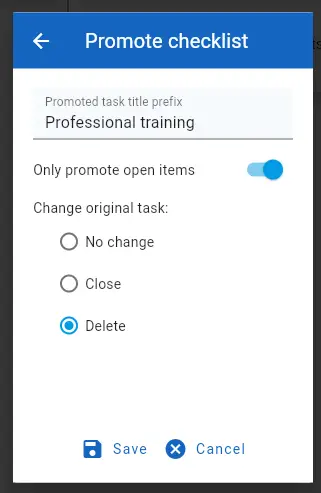
With this form….
- Promoted task title prefix: Enter a prefix name that will be used as a prefix to all checklist item names in the newly created tasks.
- Only promote open items: As a checklist can include completed items, this should be switched to ON if the promotion should only act on open checklist items.
- Change original task: Set this to determine the status of the original large task.
The user should click the ‘Save’ button to trigger the checklist promotion.


