From the Goal action panel, select the ‘Progress’ button to view a summary of progress for the current goal.

Selecting the ‘Progress’ button will open the Goal progress form.
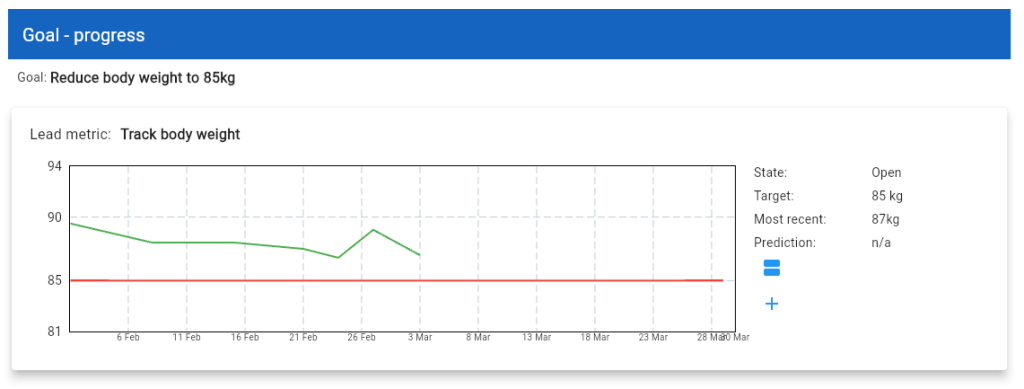
The form displays a chart panel for each lead metric defined for the goal.
This form is used to:
- View a trend chart of metric scores
- View a tabular list of metric scores
- Update a previously defined metric score
- Delete selected existing metric scores
- Add a new metric score
What is a metric score? #
For certain metric types, the user is required to manually input data to track progress on the metric. Any ‘done’, ‘value’ or ‘accumulated’ metric type will require this user manual input.
For example, a ‘value’ metric type setup to track body weight will require the user to input their body weight at a given date.
The value entered by the user is known as a ‘metric score’.
Add a new metric score #
Each metric panel shown on the progress form will include a ‘+’ plus button. Click on this ‘+’ button to add a new score for the metric
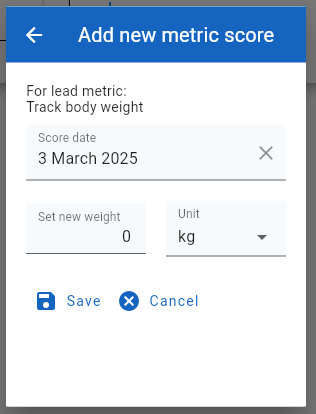
When adding a new metric score, the user is required to select the score recording data (which can be today or in the past), and the score value.
By default, the form will display the same value unit defined in the metric.
Viewing metric score history
Click on the blue equals sign to see a full list of any existing metric scores

After clicking, the Metric scores are displayed in a pop up form.

With this popup form the user may:
- Select one or more score entries, and then choose to delete them
- Click on the ‘Update’ button to change an existing score.
- Click on the ‘Add’ button to add a new score.