What is a habit? #
A habit is a recurring behaviour or action a user aims to develop, maintain, or improve over time. Habits can be positive (e.g., exercising daily, reading before bed) or negative (e.g., reducing screen time, cutting back on sugar), and tracking them helps reinforce consistency and accountability.
By consistently tracking habits, users can gradually integrate positive behaviours into their routines and work towards long-term personal growth and self-improvement.
Tracking habit adoption #
A habit in this context is a specific behaviour that the user is required to fulfil at some set interval. For example: drinking three glasses of a water each day.
To track habit adoption, the behavioural event needs to be recorded, and the recording is referred to as ‘habit tracking’. The Good Day app includes facilities for the user to record when a habit action is completed. This tracking can be completed when the event occurs or retrospectively.
Each time a user completes a habit behavioural event target for that period instance, this is defined as a ‘pass’. If the target is not reached, then this is regarded as a ‘fail’. For example, if the user does drink 3 glasses of water on a given day this is set as a ‘pass’.
A habit is defined with a start/finish date range, and an accompanying habit tracking pass assessment period. By default, the assessment period is set to 66 days, as this is the elapsed time over which research has shown that a habit needs to be repeated before it becomes part of the user’s normal behaviour.
Each habit will have an adoption pass percentage. This is the target pass rate that a user is set over the assessment period. For instance, if the user has a habit of “drink 3 glasses of water every day”, with an assessment period of 66-days, and an adoption rate of 90%, then they will have to complete/pass the habit 60 times over the 66-day assessment period for them to be judged successful
Habit attributes #
In Good Day a habit has a number of key attributes:
- Title: This is a short descriptive title
- Description: A longer narrative description, in which the purpose and motivations for the change may be recorded.
- Start When the habit will start to be tracked.
- Finish: When the habit tracking will finish.
- State: The life cycle state of the habit
- Purpose: The positive or negative motivation for the habit.
- Folder: whether the habit is linked to a folder
- Category: Whether the habit is linked to a category
- Trigger: the time of day when the habit would normally be triggered
- Weighting: the relative importance of the habit compared to other habits
- Tags: one of more free form tag names that can be applied to the habit.
- Frequency: the time period at which tracking will occur, either daily, weekly, or monthly
- Completion by: defines the method by which a habit will be tracked and recorded as ‘passed’ over the tracking period instance
- Adoption pass %: The target percentage of completion passes over the declared assessment cycle
- Assessment period: the rolling period over which tracking performance will be measured.
Habits page #

The Habits page presents three top level tab pages:
- List: Shows a list of habits, optionally filtered by state
- Progress: Shows a progress chart of for each active habit.
- Tracking: Allows for recording activity/progress against any of the active habits
List tab #
The habit list view allows the user to:
- Change the filter applied to the list
- Add a new habit
- Change an existing habit
To add a new habit, tap over the ‘+’ icon
To change the filter, tap over any of the ‘All/Open/Active’ buttons found at the top of the tab page.
To change an existing habit, tap over the icon located at the left side of the habit list entry card.
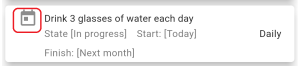
A pop up menu will appear.

To change a habit, select the ‘Edit’ menu item.
Select the’ Track’ menu item to view or record tracking activity for this habit.
Progress tab #
The progress tab is used to show the current progress for all active habits.

Each time a user completes the required habit activity for the day, this is regarded as a ‘pass’. These charts show the rolling percentage of passes over the stated compliance period as a green line, with the target compliance value as a red line
Tracking tab #
The tracking tab shows a list of the active habits, and allows the user to record activity against any of the habits.

The user has the option of displaying the active habits for a given day or week. The active period can be shifted forwards or backwards.
To record activity against a habit, tap on the ‘+’ button found in the bottom half of the habit card. After tapping a form will pop up prompting the user to record activity.
For example, with the ‘Drink 3 glasses of water’ habit, tapping on the ‘+’ button will open a pop up form that will prompt the user to select the number of glasses of water consumed.
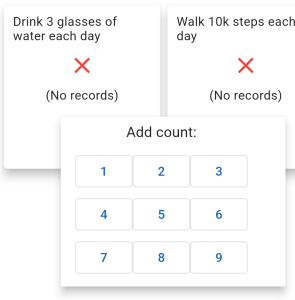
Activities can be recorded at any time, and on multiple occasions. Hence, if the user drinks a glass of water in the morning, and two in the afternoon, then they might the tracking facility to record this consumption as two different activies.
When activity is recorded for a habit in the current day or week, then the habit card display will be updated to show an upward arrow progress indicator.

A habit-tracking activity can be removed by tapping on the ‘undo’ button found in the bottom right of the habit card.
When a habit is achieved for the day then the habit card icon changes to show a green tick.
