Introduction #
The ‘Today’ page provides a single location for showing all the tasks and habits related to today and future days
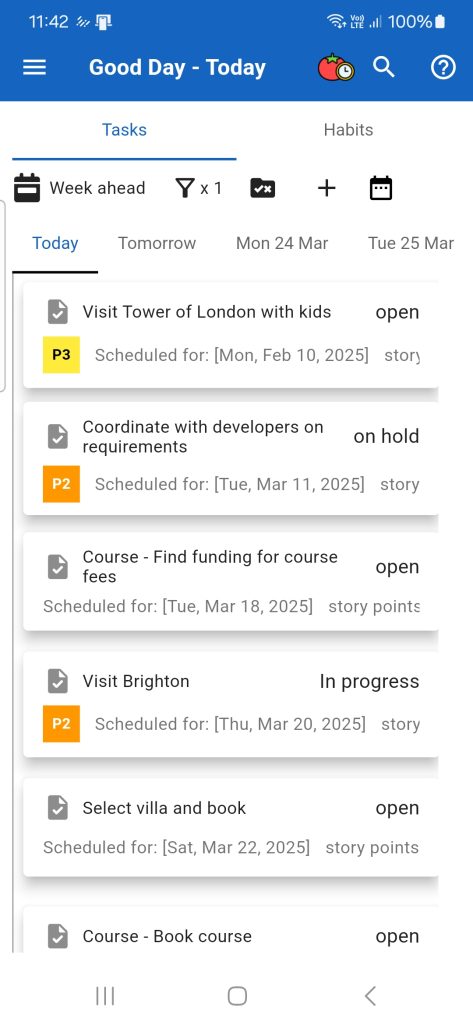
The page consists of three main sections:
- The page title section with icons
- The tab bar section with the ‘Tasks’ and ‘Habits’ tab options
- The tab data display section, which by default will show the tasks scheduled for today
Page title icons #

This section includes four icons:
On the left side of the section is the app drawer icon that when clicked upon will display a pop up menu showing all the main ‘Good Day’ feature pages
On the right side of the title bar are three further icons


Page tabs #
The second section on the page provides two tabs for moving between a task display and a habits displayed

Tasks display panel #
The tasks display panel shows a list of tasks scheduled for a specific date.
This panel has three options for showing tasks:
- Today view: Shows a list of all tasks scheduled for the current date (plus optionally any overdue tasks)
- Tomorrow view: This view will show two subsidiary tab panels, each with a list of tasks. The first sub-tab panel shows tasks scheduled for today, and the second shows all tasks scheduled for tomorrow.
- Week ahead view: Will show a number of subsidiary tab panels, one for each day of the week ahead. Each sub panel shows a list of tasks scheduled for that date.
Task panel toolbar #
The task panel includes its own toolbar of task related functions.

Clicking on The first and left most icon will open a pop menu that allows the user to either select the task view of configure the view display
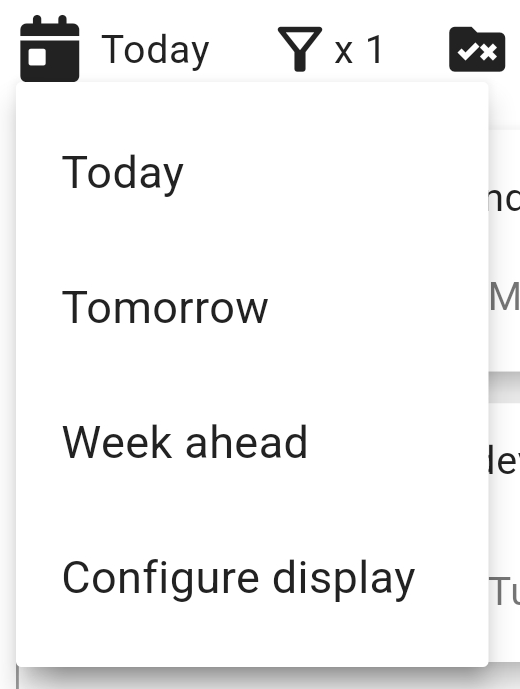
Selecting the ‘Today’, ‘Tomorrow’, or ‘Week ahead’ menu items will change the Tasks panel to show a different set of tasks across a range of days.
Selecting the ‘Configure display’ menu item will open a pop-up form that will allow the user to configure aspects of the Today page display.
Clicking on the 2nd left icon in the toolbar will make a pop up menu appear that will show various filter related options:
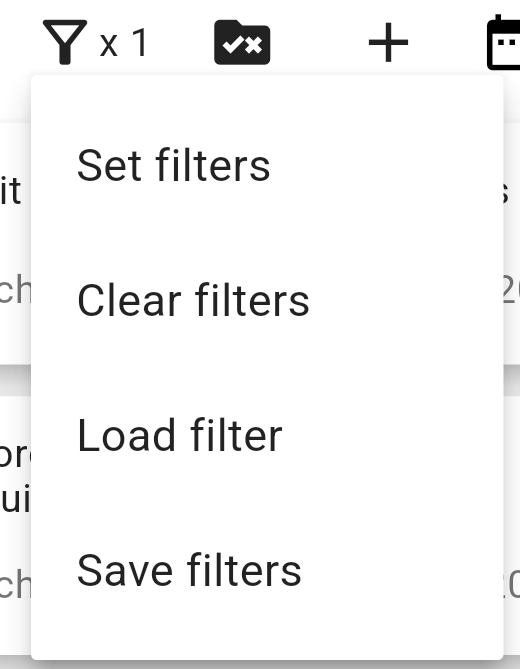
Selecting the ‘Set filters’ menu item will open a pop form filters form that will allow the user to add various filters on what the tasks panel displays.
Selecting the ‘Clear filters’ menu item will clear any non-default filters that are in palce
With ‘Good Day’ a user may save a filter selection of reuse in later sessions. Selecting the ‘Load filter’ menu item will present the user with a list of previously saved filters to choose from.
Choosing the ‘Save filters’ menu item allows the user to save the current set of filters under a given name.
Choosing the third leftmost icon in the toolbar will open a popup menu that shows features related to selecting and updating the values of multiple tasks in one action.
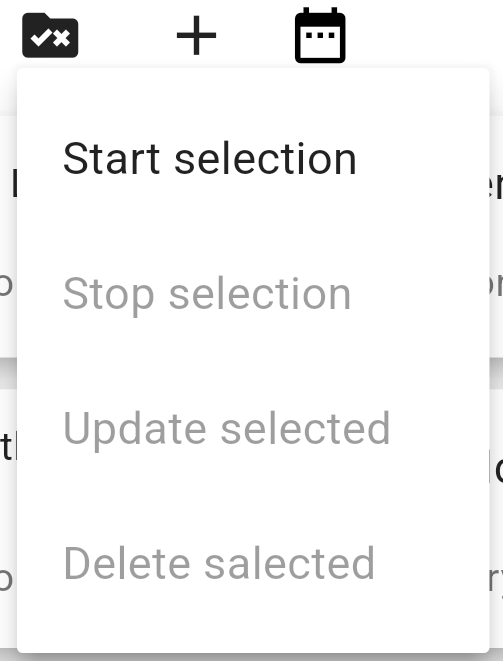
Selecting the ‘Start selection’ menu item will change the task list display to show a selection checkbox in each task card. If the user selects one or more tasks then the other menu items in this menu will become enabled.
Selecting the ‘Stop selection’ menu item will abort the selection process, and task cards will be redrawn without the selection checkboxes.
Choosing the ‘Update selected’ menu item will open a pop up form where the user may set one or more task attributes to update. The changed attributes will be applied to all selected tasks.

Habits tab panel #
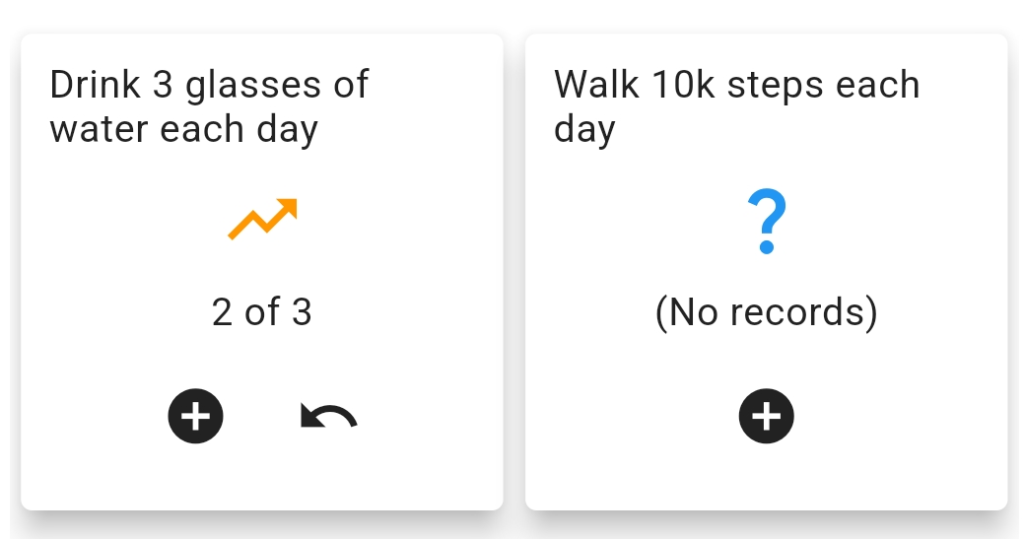
The habits panel shows a list of the habits that are active today.

In this panel, the user may click on the ‘+’ icon in a habit card to record activity for that habit.
For example, to record the drinking of water, the user would click on the ‘+’ icon and a popup prompt will appear asking the user to confirm the number of glasses drunk.
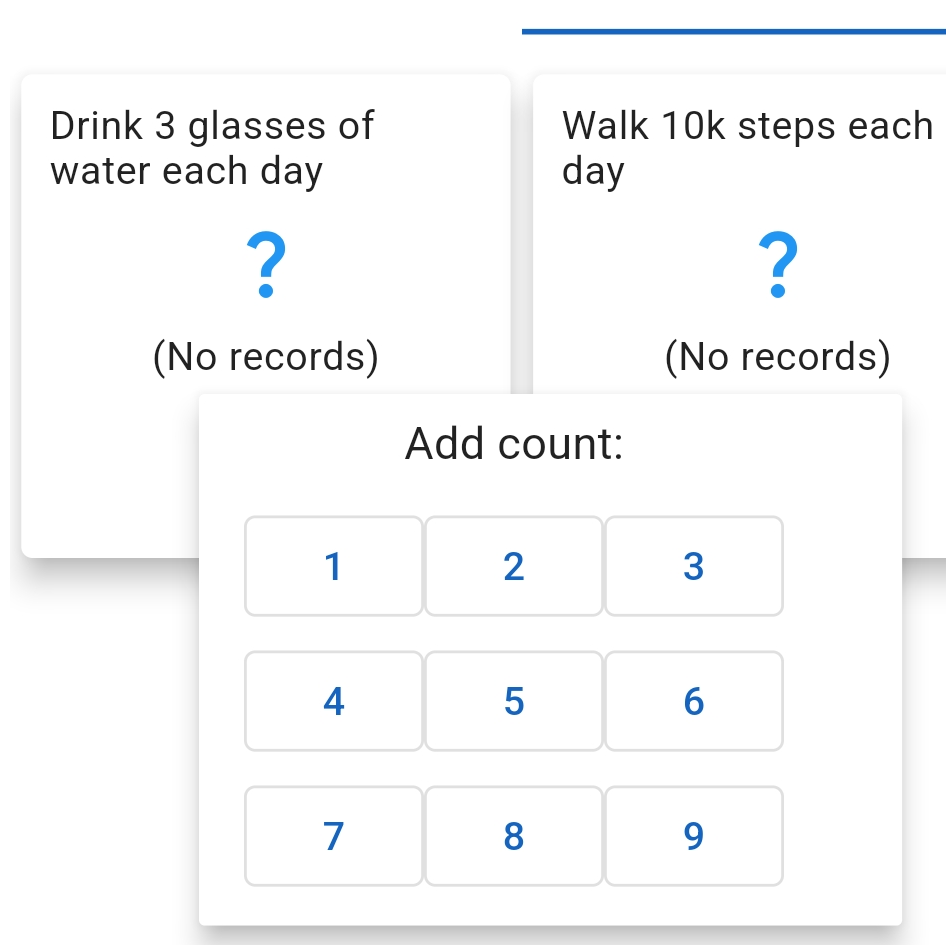
Once the user has selected the count number, the pop-up prompt will close and the habit card will update to show progress.