The ‘Tasks’ and ‘Today’ pages provides options for filtering the list of tasks displayed.
There are two methods for activating filters:
- Filter toolbar actions
- Sidebar Quick filter on key attributes buttons
Filter toolbar #
The Filter toolbar includes a range of buttons for adding, clearing and saving filter selections

The toolbar has four buttons:


When adding a new filter, the ‘Set Task Filters’ pop up form is opened.

The user may add one or more filters by clicking on the ‘+ Add filter’ button and then:
- Selecting the field to be the new filter
- Choosing the filter operand
- Setting the filter value
Existing filter entries can be removed by clicking on the ‘x’ button found on the right side of the entry
Quick filter buttons #
The ‘Today’ and ‘Tasks’ pages include a set of quick filter buttons in the sidebar areas.

These quick filter buttons are provided as a user convenience for quickly adding filters to the fields most likely to be used for filtering. Clicking on any one of the quick filter buttons will open up a pop up form to make a filter selection for that particular attribute.
For example, clicking on the ‘Goal’ quick filter will open the ‘Select goal’ pop up form. The user may select one or more goals.

After the selections have been confirmed, the goal related filters are shown in the sidebar area.
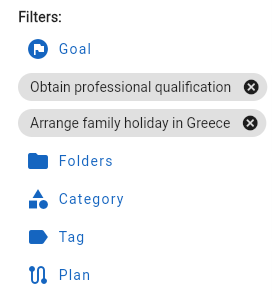
Quick filter entries can be removed by clicking on the ‘x’ button at the right side of the filter value.
Default filter settings #
By default the task filter is set up to include the task Open = Yes filter. This ensures that the task views are only showing open tasks.
Saving filters for reuse. #
The filtering feature allows a filter setting to be saved for subsequent reuse in later sessions. This feature is particularly useful when building a complex multi field filter, and by saving this it avoids the user from having to reconstruct the filter settings.
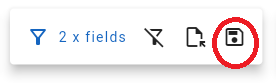
Clicking on the ‘Save filter’ toolbar button will open the ‘Save task filter’ form.

The form requires that the user:
- Provide a unique name for the save filter
- Add an optional description
- Switch on or off the use of this filter as the default starting filter.
After the form fields are set, when the user clicks on the ‘Save’ button the form will close.
Saving a custom filter as the ‘default starting filter will make those filter settings the starting filter whenever the Tasks page is opened.
Open previously saved filters #
A saved filter may be re-used in a subsequent session. To open a saved filter click on the ‘Open saved filter toolbar button

Clicking on the toolbar button will open the saved filter form

The user should select the required saved filter from the list and then click on the ‘Select’ button.
At this point, the pop up form is closed, and the filters associated with the saved filter are set as the current filters.