The activities, actions and changes in behaviour required to complete a goal may be encapsulated into an ‘action plan’.
Good Day support the notion of an ‘action plan’ where by:
- A larger goal may be decomposed into smaller ‘stepping stone’ goals
- One or more tasks may be associated with a goal
- One of more habits may be associated with a goal.
First, edit the goal to create an action plan. When the ‘Edit Goal’ form appears, a new set of goal-level buttons appears in the action panel.
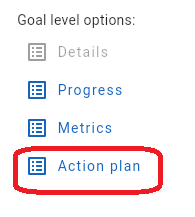
Select the ‘Action plan’ button and the data display will change to show the goal action plan form.

The action plan form has three sections, one for sub goals, a second for related habits, and a third for the tasks associated with completing a goal
There are two approaches for defining an action plan.
- For very large goals that span an extended timeframe, use the ‘sub goals’ section to define a set of stepping stone goals that, when all completed, will lead to the completion of the parent goal.
- Alternatively, for more straightforward goals add a mix of habits and tasks that in total will lead to the completion of the parent goal.
Each of the three sections has a set of toolbar buttons that are used to add content to the section:

In addition, the ‘Actions’ section has a ‘Open only’ slider control that when activated will filter the tasks lists to show just the open tasks.
For each of the toolbar options:


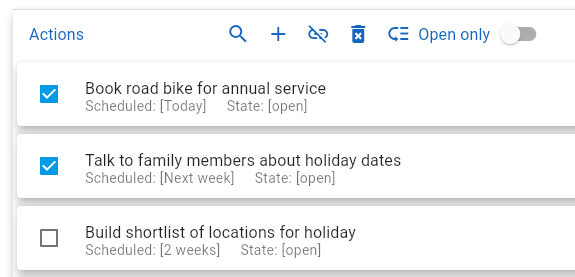
For example, to remove selected tasks from the ‘Actions’ section without deleting the tasks, then first select the tasks and then click on the ‘unlink’ button to remove them from the action plan.


After clicking on the ‘Reorder’ button, the display will change to show the section entries with a new ‘=’ drag action icon on the right side. Click and drag on an entry’s drag icon to move it to a new position in the list.
When the reordering stage is completed, the user should click on the ‘Save order changes’ button to save the new revised entry order