The list view display can be changed from its configuration form

In the list view, click on the cog wheel ‘configure’ toolbar icon to open the configuration form.
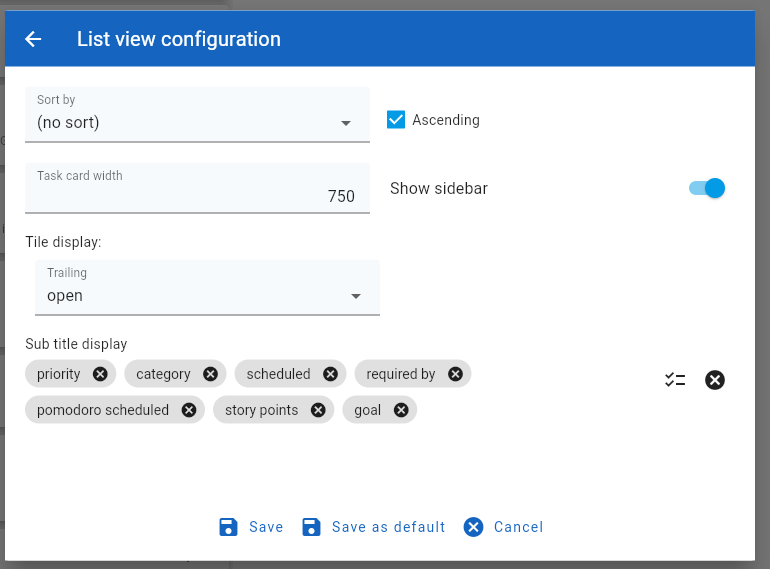
In this form, there are options to:
- Set the list sort order
- Set the task tile width
- Hide or show the Tasks action sidebar
- Change the task attribute displayed in the task tile in the rightmost area.
- Choose the task attributes displayed inside the task tile below the title. Note: task attribute values are only displayed if they have data.
After making the required changes, when the user clicks on the ‘Save’ button, the view is updated to reflect the new configuration.
Alternatively, clicking on the ‘Save as default’ button will make the settings for this and all future instances of the list view..