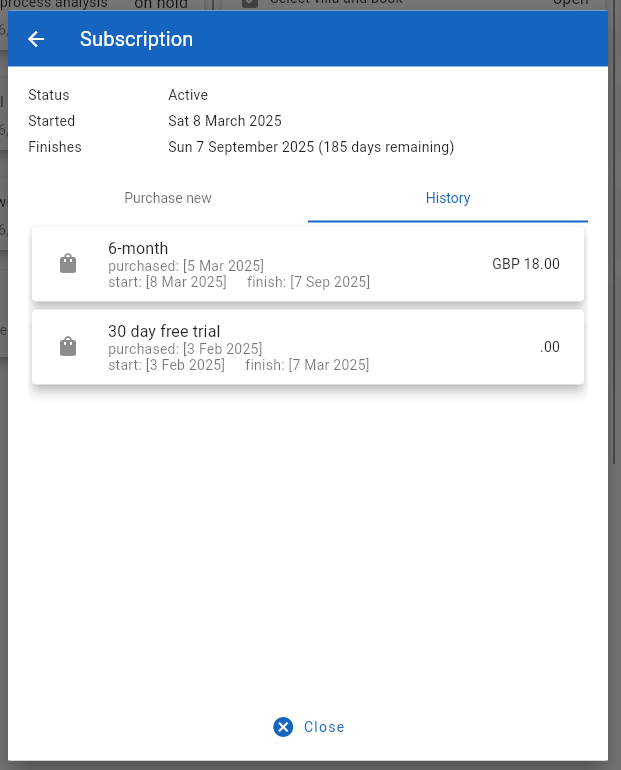
To purchase a first subscription, or to extend an existing paid subscription, the user must open the ‘Subscription form.
This is accessed from the ‘User’ menu found in the top right corner of the display. From this drop down menu select the ‘Subscription’ menu item.
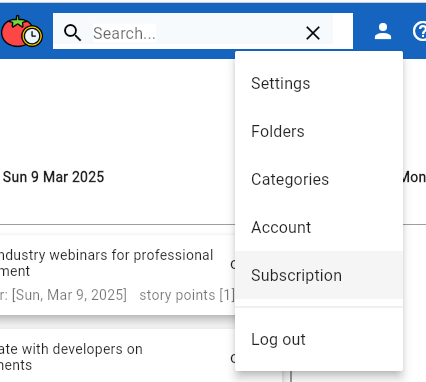
After selecting this menu item, the pop up ‘Subscription’ form will appear.
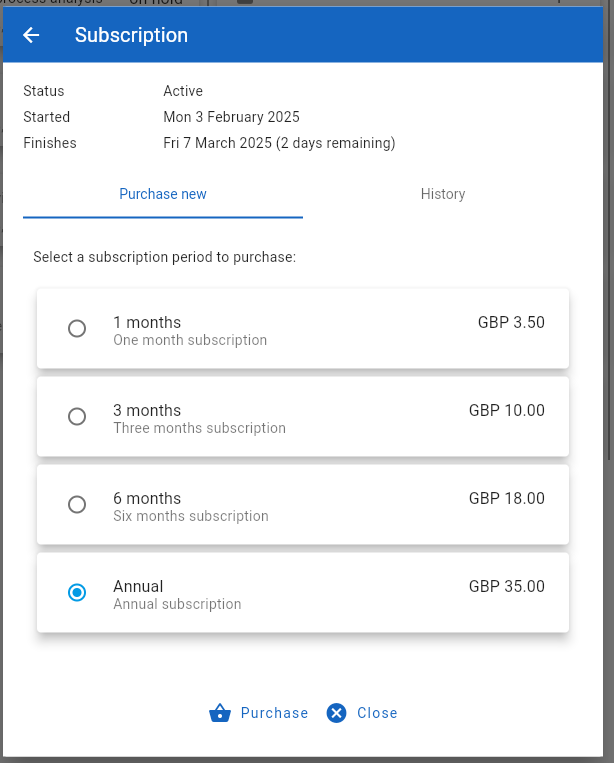
To start the subscription purchase process, the user should select the desired subscription period and then click the ‘Purchase’ button.
After clicking on the ‘Purchase’ button, the form display will change to show input fields for collecting the payment details.
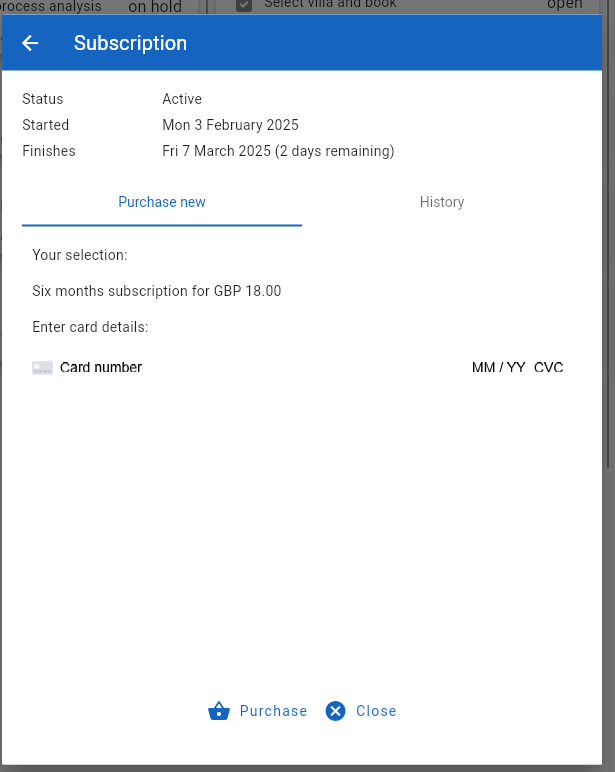
The user should enter their credit card number, card expiry date, and card CVC code.
Once this details are input, the user should click on the ‘Purchase’ button to initiate the online purchase.
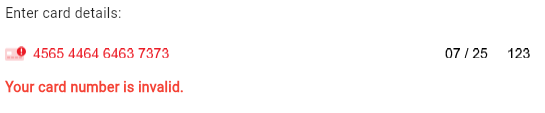
If any of the details are incorrect, then a warning message will be displayed in red below the card detail fields
Note: The Good Day app does not retain credit card information. It passes this information in encrypted form via an embedded control supplied by the payment processor.
- For the web app, this is via the Stripe payment platform.
- For the Android app, this is via RevenueCat as a proxy for the Google Play Store payment APIs.
Once the online purchase has completed, the form displays a confirmation of the purchase.
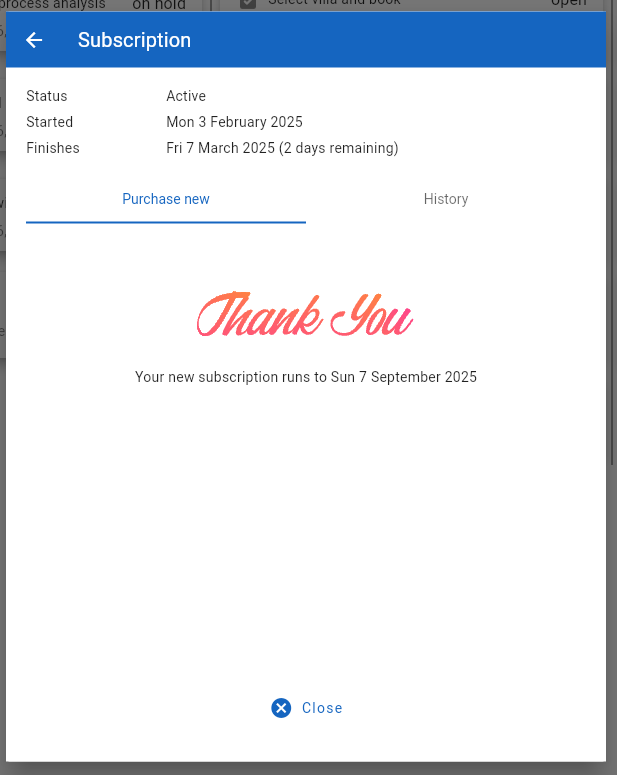
At this point, the user may click on the ‘Close’ button to return to the Good Day main page.
Alternatively, click on the ‘History’ tab to see the just purchased subscription in the list of subscription actions.