To record progress on habit adoption, the user must track when the user completes a habit event. This is known as ‘habit tracking’ and is available from three locations.
- On the ‘Today’ page
- On the All habits tracking view
- On the individual habit tracking view
Habit Tracking from the ‘Today’ page #
The active habits will be displayed as part of the Today page.

All habits tracking view #
From the Habits page, select the action panel ‘Tracking’ button and the data area will change to show a tracking input view for all active habits. This view can be set to show the tracking for a single day or all days for the current week.

This view also includes a date navigator to allow the user to view tracking outcomes over previous days and weeks.
Individual habit tracking view #
To view tracking for a single habit:
- Open the “Habits” page and choose the ‘List’ action option.
- Click on a habit entry in the list
- In the action panel under the “Habit level options” click on the ‘Tracking’ action button

The individual tracking view provides a multi-panel display of progress and tracking for the habit.
- The top most panel shows a graph that displays the target pass % (In red) and actual rolling pass percentage (n green)
- The middle panel shows a horizontally scrolling list of tracking event panels, with the outcome of each days/weeks events. The tracking date cards can be scrolled horizontally to show the outcomes of all past tracking dates.
- The bottom panel shows the events recorded for the current tracking date. Clicking on a card in the middle panel will update the details shown in the bottom panel.
Recording tracking events #
To record a habit tracking event, click on the ‘+’ button found on the habit entry card. After clicking on the ‘+’ button, a pop up form will appear, prompting the user to record a tracking event.
For example, with the “Drink 3 glasses of water each day” habit, a pop up form showing different numbers will appear.
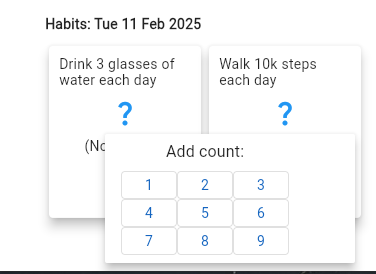
The user can then select a number to represent the number of glasses of water they have recently consumed. If it was just one glass, then the user would click on the ‘1’ button in the popup form.
After completing habit tracking input, the habit entry will be updated to reflect the progress made.
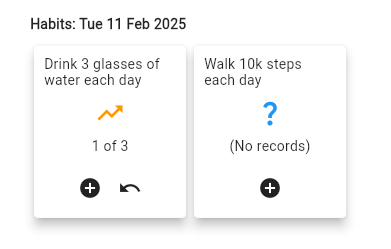
If a habit has a tracking event, then the card will display two buttons
- The ‘+’ plus button used for adding new tracking events
- A second ‘Undo’ button that when clicked on will remove the most recently added tracking event.
When a habit has been completed for a given tracking date then the habit card will change to show a green tick.
