The ‘Tasks’ and ‘Today ‘pages provide a mechanism for selecting. and updating multiple tasks
The data area includes a ‘multi-select’ toolbar.
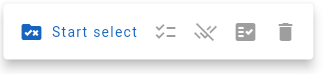
The toolbar has the following buttons:


Clicking on the ‘Start select’ button will change the tasks in the display to include a checkbox selector.
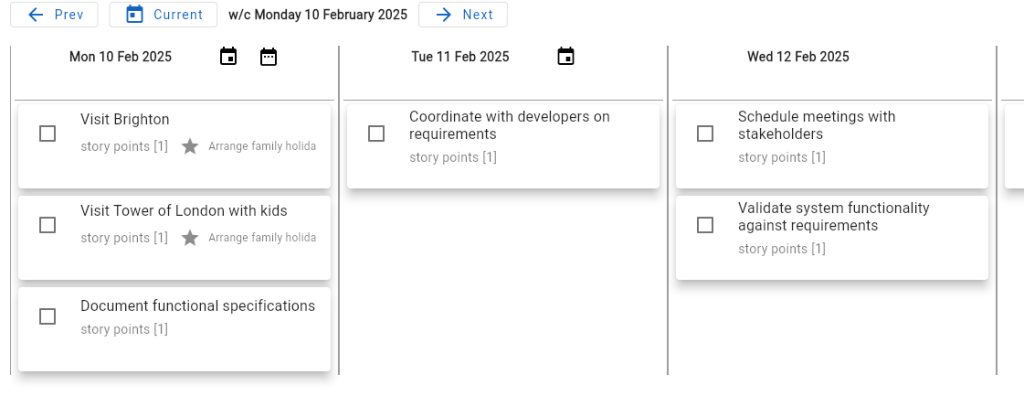
The checkbox in each task entry allow the task to be selected for inclusion in the multi-task update process.
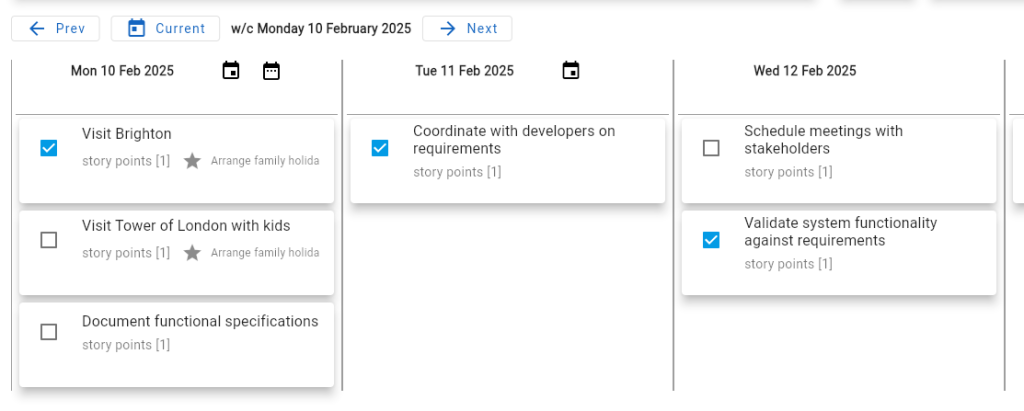
When the required tasks have been selected, then click on the ‘Update selected tasks’ toolbar button.
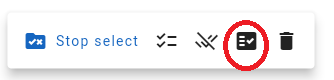
Clicking on this button will open the ‘Update tasks’ form.
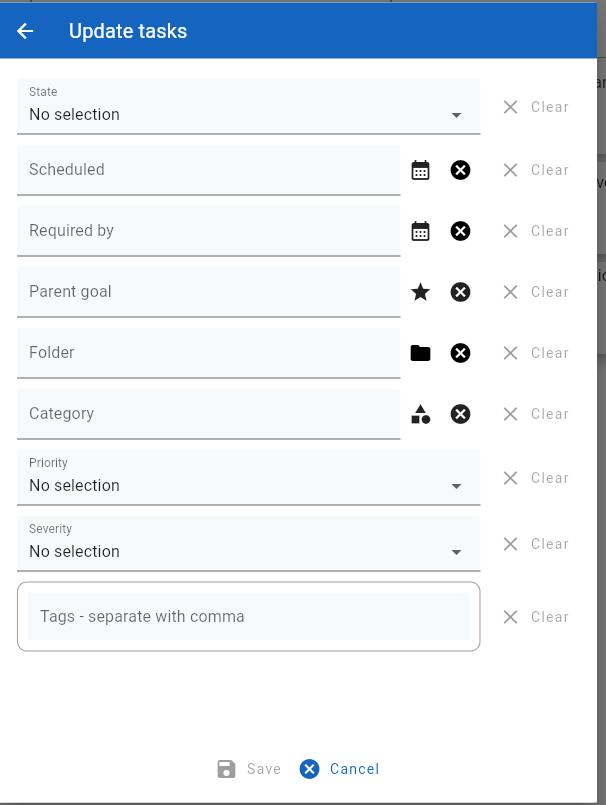
The user is now free to change the attribute settings for any of the fields in this form.
For instance, changing the priority field to ‘Priority 2’ and then selecting ‘Save’ will update each of the selected tasks to have this priority.
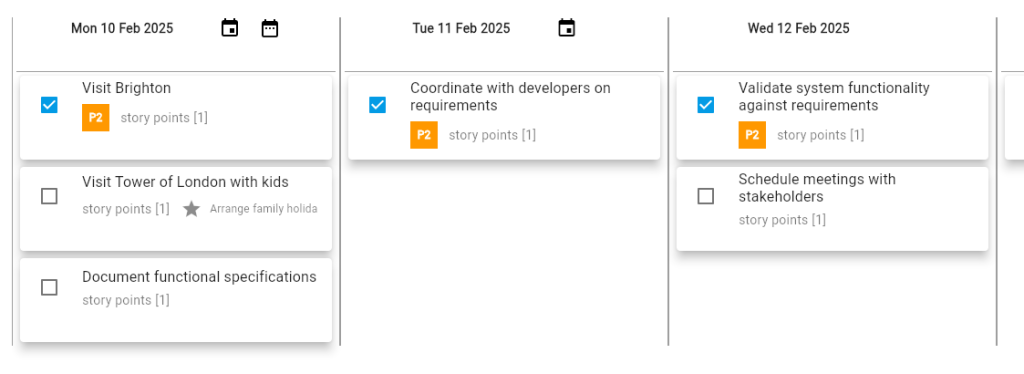
When the multi-task update process is completed, click on the ‘Stop select’ toolbar button to return the display to its normal state.